Getting Started
How to install Chordprinter 2 and make it work.
Requirements
- Ableton Live Suite 12 with Max 8 or higher
- macOS or Windows
Print your first chords
To get your first notes from Chordprinter 2 takes just a few clicks:
- Mount Chordprinter 2 on a rack
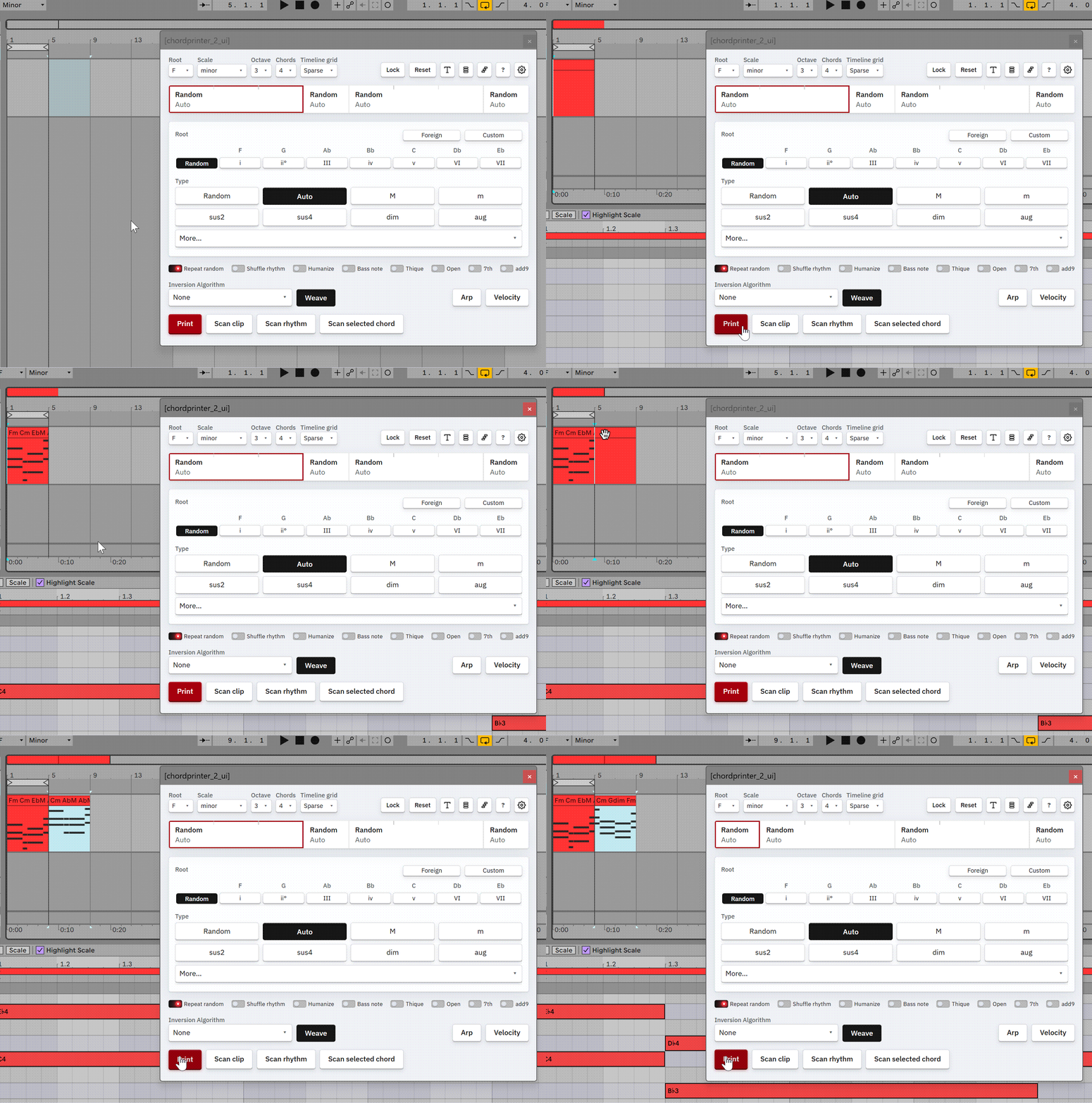
- Select a clip in Live
- Click "Print"
And there, a chord progression materializes to the selected clip.
Float
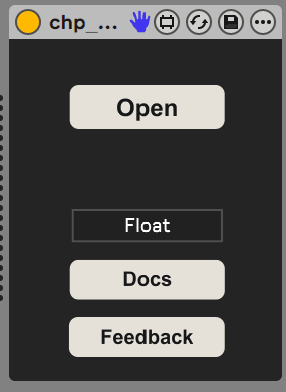
On the small UI that sits on the device on the effect rack, you can see a Float button. When turned off, the UI acts as a standard, separate window. When on, the UI always stays on top. This is useful when working side by side with the Piano roll and you don't want the UI to disappear.
Session Persistence
The UI state of Chordprinter 2 is persisted between sessions. This means that when you open Chordprinter 2, it will remember the last state of the UI.
Saving presets and recommended location on HDD
You can save Chordprinter 2 presets just like with any other native device in Live.
We recommend pasting Chordprinter 2 to \Ableton\User Library\Presets\MIDI Effects\Max MIDI Effect\
so it shows up in Live's search.
Undo/Redo
Undo and redo work with the standard keyboard shortcuts.
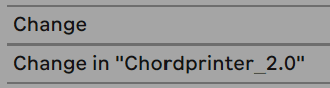
One catch: with Autoprint on (the default), each tweak lands as two undo steps in Live. One for the change inside Chordprinter 2, and one for the print itself.